How it works
From “I’m free” to a real adventure
Five steps, about ten minutes, ending with actual plans to go on an adventure. Each one is short enough to share on its own, and the set reads as one story.
Step 1
Sign in
There’s no password to invent or forget.
You give an email address; the app sends you a link.
What happens
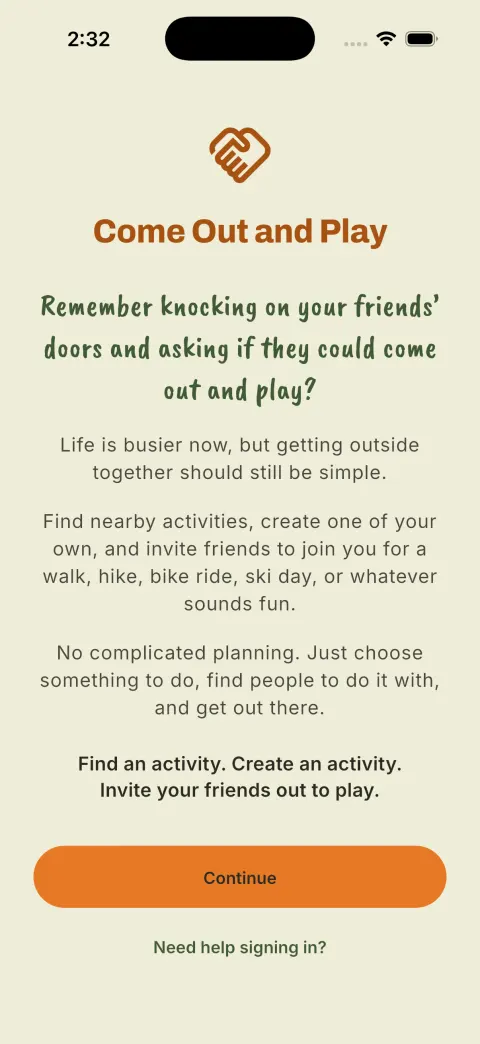
- Open the app and tap Continue.
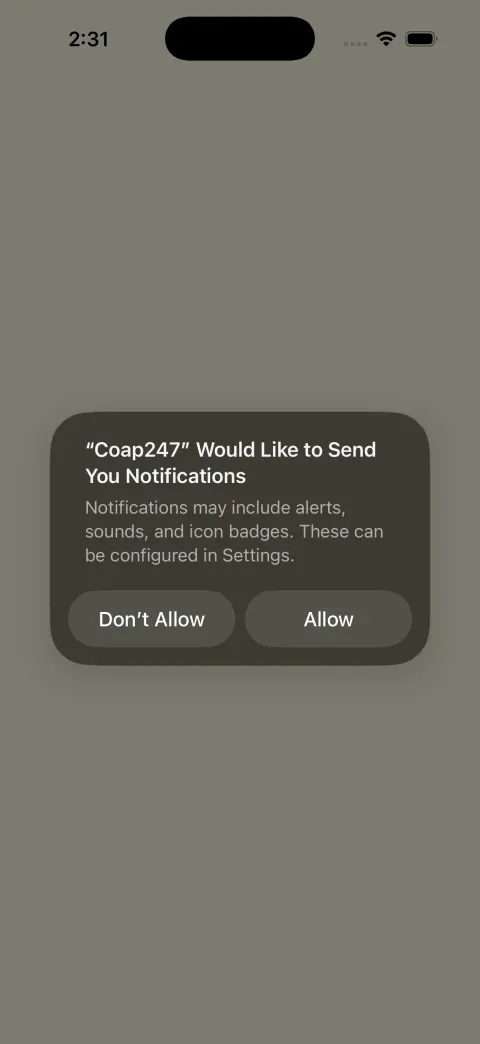
- Say Allow when your phone asks about notifications. This one matters more than usual — a last-minute invitation you see tomorrow is a ride you missed. You can tune exactly what gets through later.
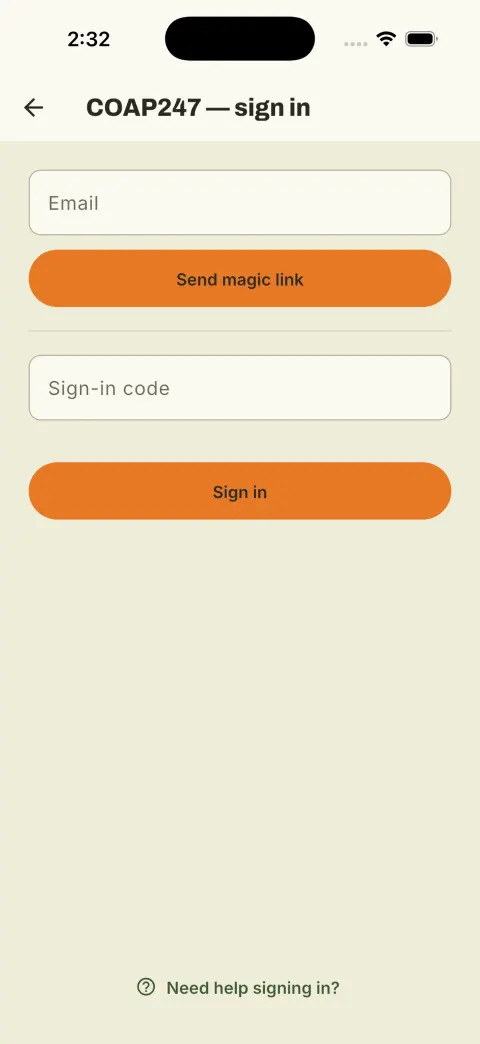
- Enter your email and tap Send magic link.
- Open the email and tap the link — or copy the sign-in code it contains, paste it into the second box, and tap Sign in.
Then a few confirmations
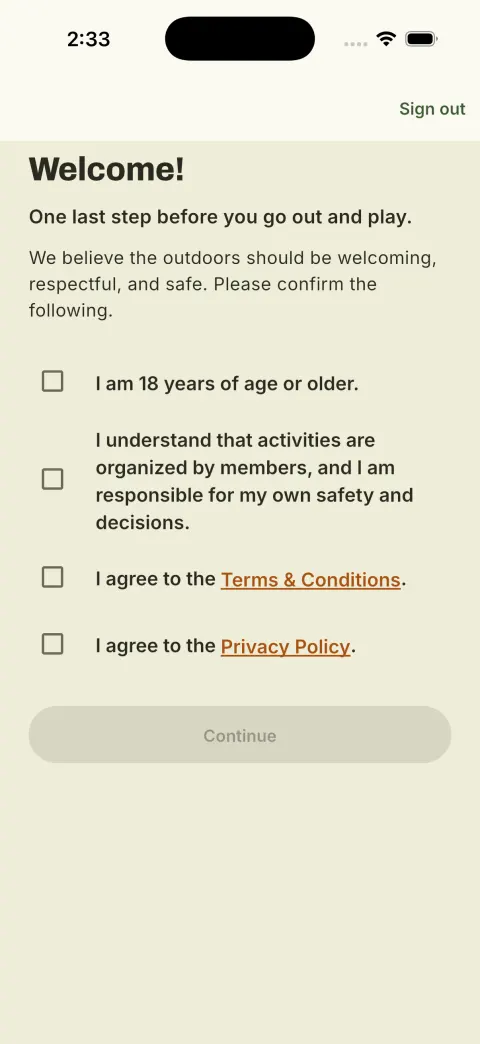
You’re 18 or over, you understand that activities are organised by members rather than by the app, and you agree to the Terms and Privacy Policy. Both are linked right there if you want to read them first. Continue stays greyed out until all four are ticked.
Step 2
Set up your profile
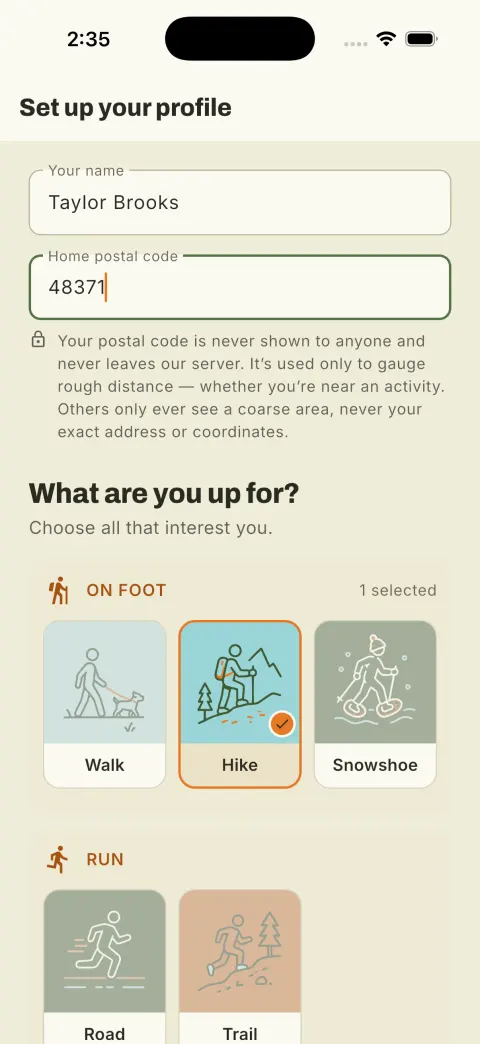
Three things: your name, your postal code, and what you’re up for.
It takes about a minute, and there’s no map, no GPS prompt, and no location permission to grant.
Your name
What your connections see. Real enough that a friend recognises it.
Your postal code
This is the part people hesitate over, so here’s exactly what happens to it:
You type five digits. The app works out your town and time zone from it, so invitations always land in the right local time. Nobody sees the digits, and the app never asks for your live location.
What you’re up for
Tap everything you’d genuinely say yes to. This drives the whole app: you’ll only be invited to things on this list, and it’s the list you’ll pick from later when you say you’re free. Leave off what you don’t do — that’s how you avoid being asked about it. You can change all of it later from the home screen, so don’t overthink it.
What you’ll see next
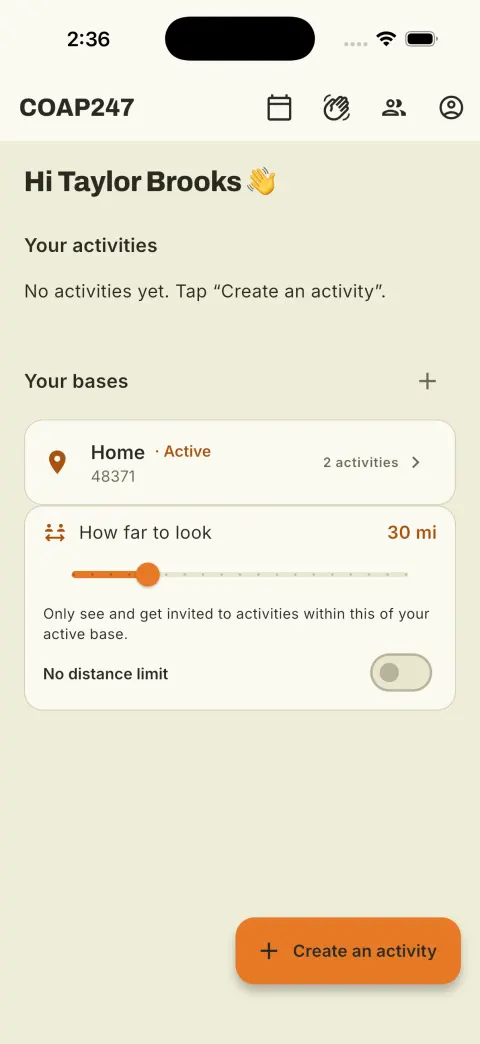
An empty home screen. This is normal and it is not the app failing — you simply have no friends on it yet. That’s step 3, and it’s the one that matters.
Step 3 · Start here
Add a friend — do this first
This is the step that turns COAP247 on.
The fastest way: in person
You’re standing next to someone. Thirty seconds:
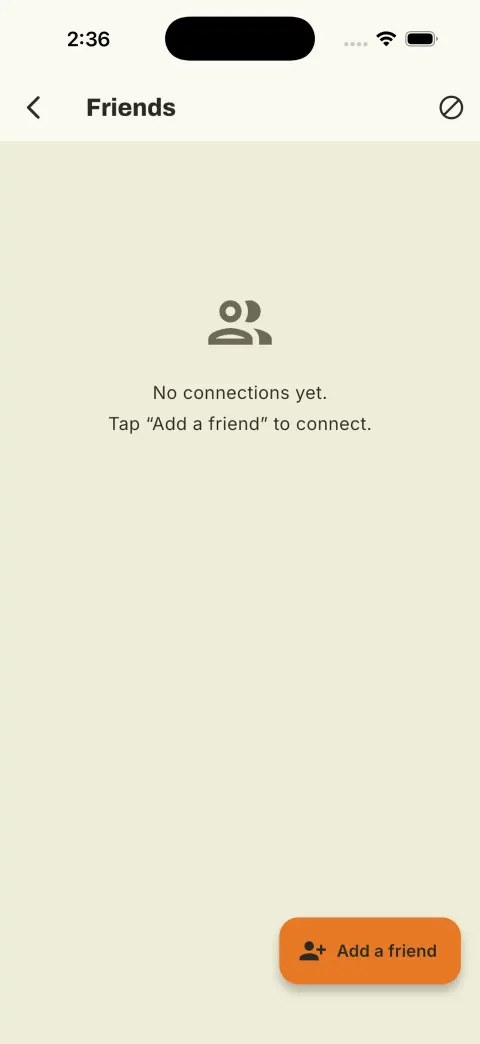
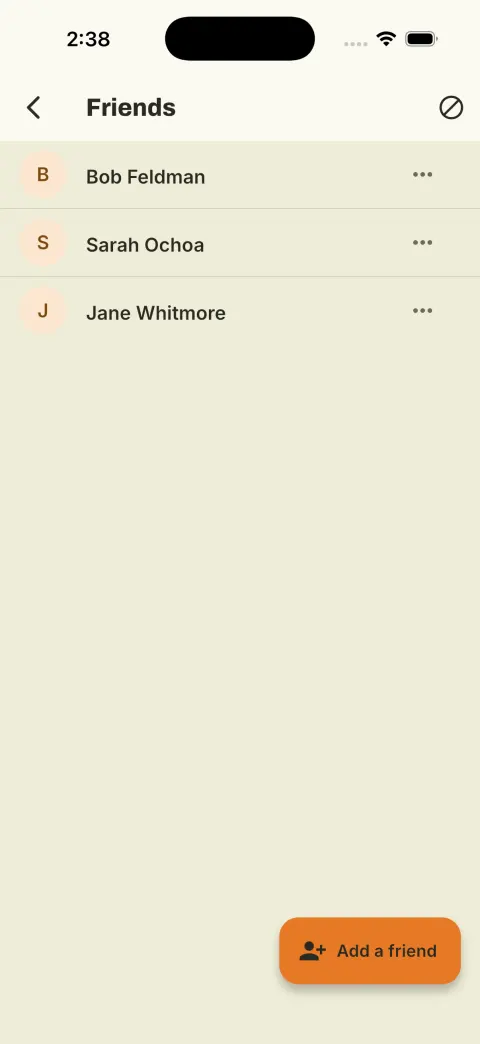
- Tap the people icon at the top of the home screen → Add a friend.
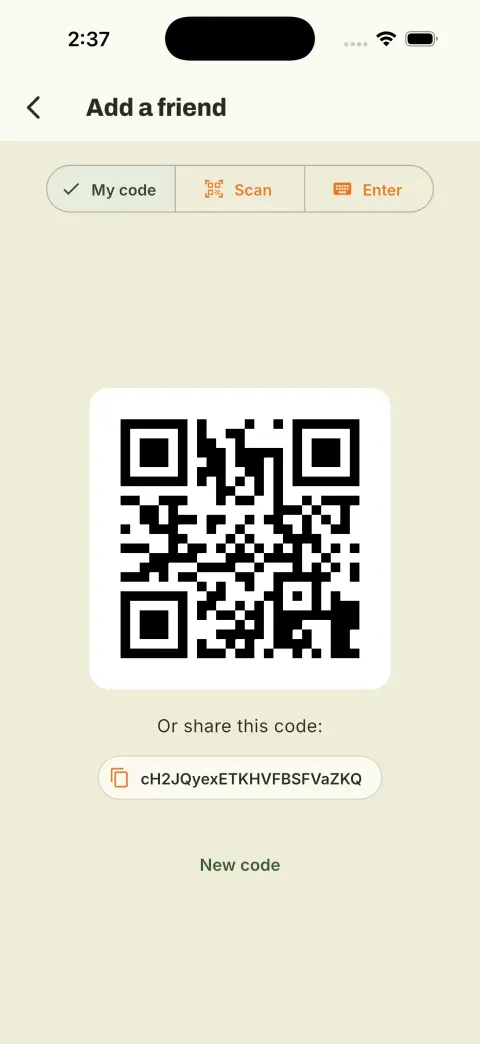
- On My code, tap Show my code.
- They open the same screen, tap Scan, and point their camera at your phone.
Done — you’re connected both ways. Scanning in person also earns a higher trust level than a pasted code, because the app knows you were actually together. Trust decides who gets asked first when you plan something later, so scan whenever you’re face to face.
When they’re not with you
Under the QR is the same thing as text. Tap it to copy, then send it however you like — they paste it under Enter and tap Connect. New code replaces yours if it ever ends up somewhere public.
How many is enough?
Three is the number. One friend and the app is a two-person text thread with extra steps. Three or four people who actually do things near you, and there’s something in the feed most weeks. Start with the people you already text about going out. That’s the whole list.
Step 4
“I’m bored, let’s play!”
Now that you have friends on here, this is the button to use.
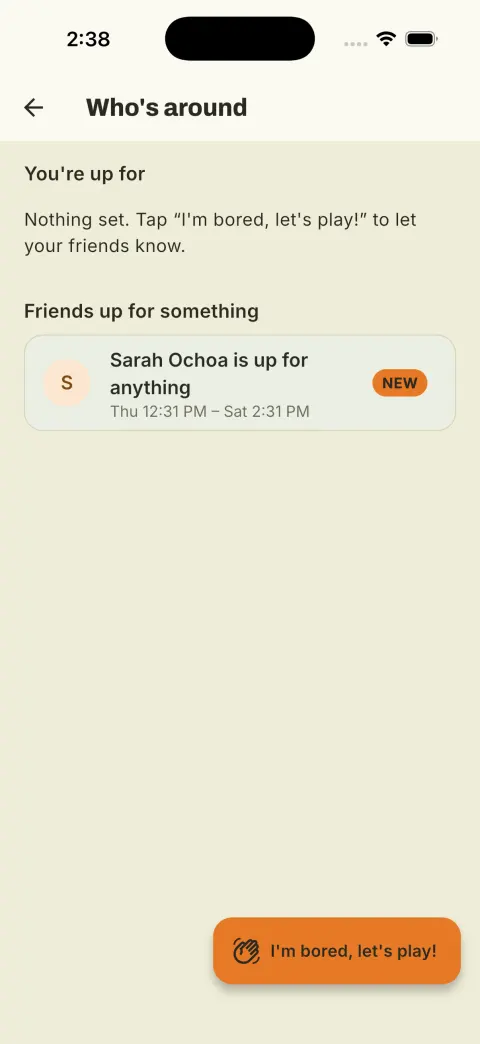
Not “create an activity” — that asks you to commit to a time and a place before you know if anyone’s free. This just says I’d go out this weekend, and costs you nothing. Tap the clap icon at the top of the home screen. You may already see a friend on there — the moment you connected, their open windows became visible to you.
Saying you’re free
Tap I’m bored, let’s play!
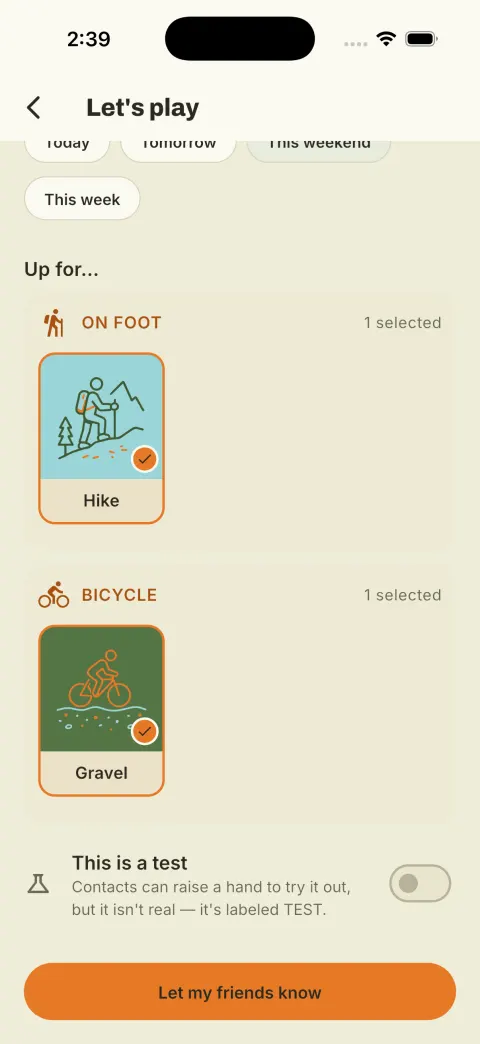
- Pick when — Today, Tomorrow, This weekend, This week.
- Pick what you’re up for. Only the activities from your profile appear here — that’s why step 2 asked.
- Tap Let my friends know.
That’s the entire interaction. No time, no place, no picking who to ask. It goes to your friends and expires by itself when the window closes, so there’s nothing to remember to switch off.
(The This is a test toggle is for showing someone how the app works — friends can respond, but everything is labelled TEST so nobody turns up expecting a real ride.)
What comes back
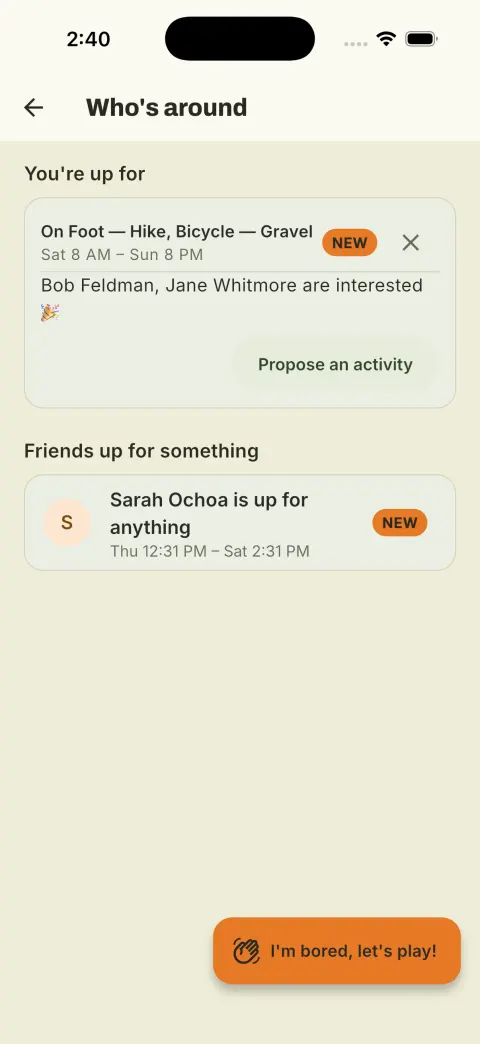
They tapped one button too. Nobody has committed to anything yet — but you now know two people would come out, which is everything you needed to know.
Step 5
Turn it into a real plan
Two people said they’re interested. Now make it an adventure.
Tap Propose an activity on your own card in Who’s around.
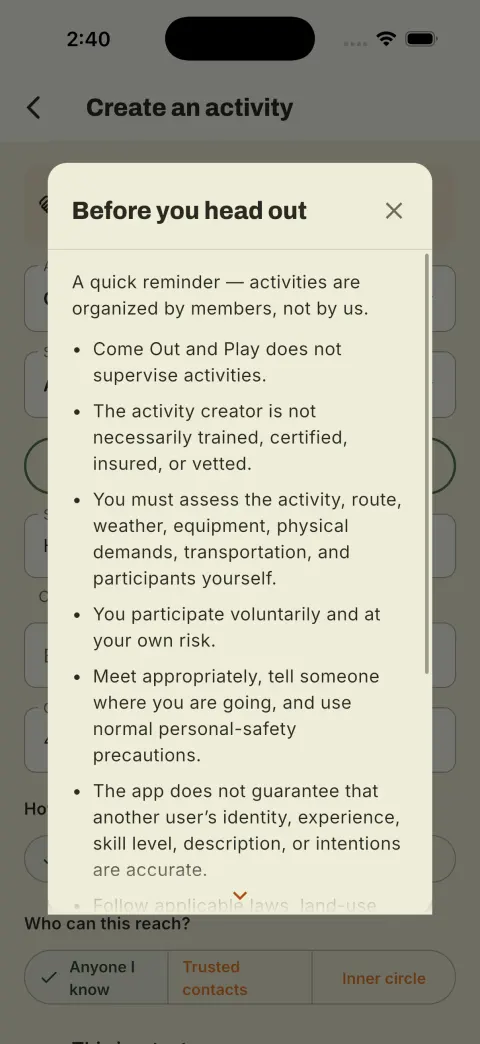
The safety reminder
First time through, you get this. Worth actually reading once: the app introduces people, it doesn’t supervise anything. Judge the route, the weather, and the group yourself; meet somewhere sensible; tell someone where you’re going. There’s a Don’t remind me again at the bottom.
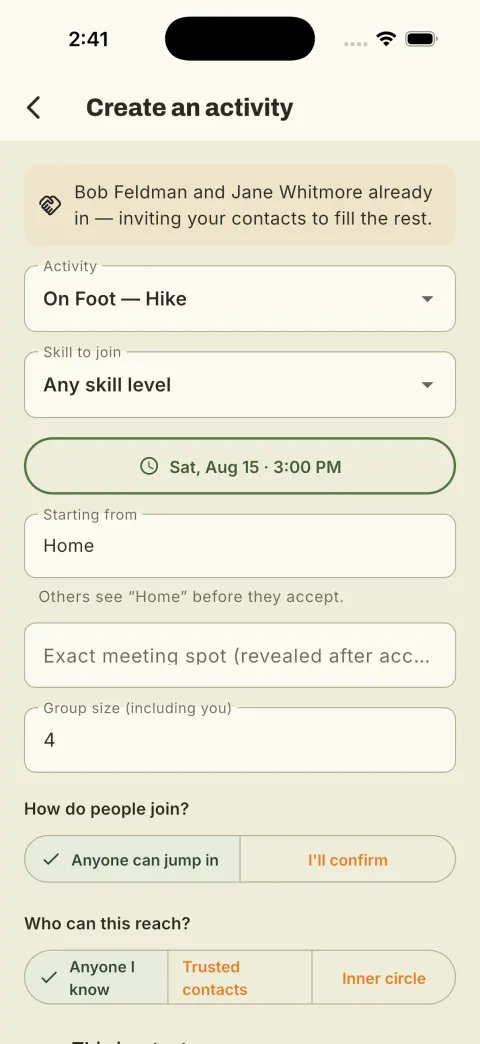
The form is already filled in
The activity and the time carry over from what you and they already agreed to. The people who raised a hand are in the plan already — they don’t get re-asked. You only fill in what’s actually missing:
- Exact meeting spot — the trailhead, the parking lot. Nobody sees this until they’ve accepted; before that they see only a coarse area like “Oxford, MI”.
- Group size — including you.
Leave Anyone can jump in and Anyone I know as they are for your first one. Tap Create & invite.
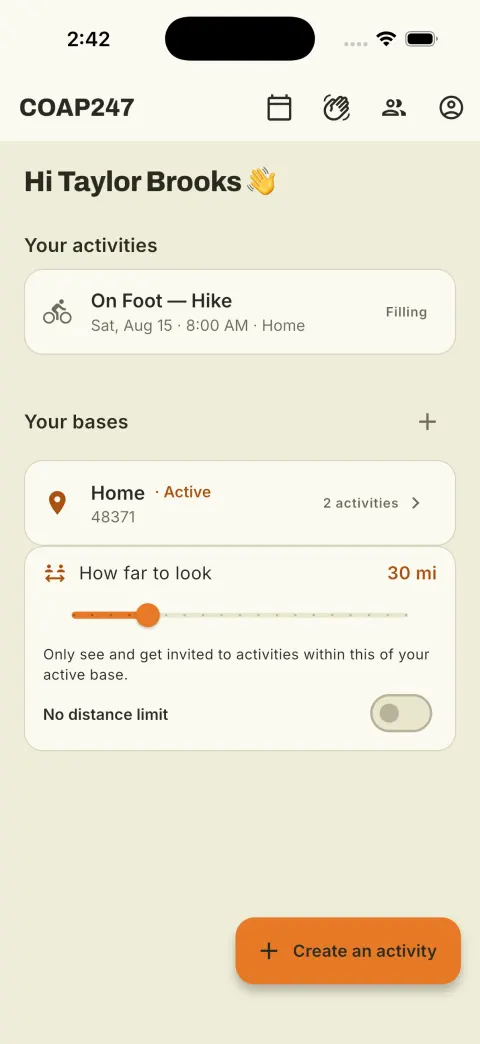
That’s it
Your plan sits on the home screen at Filling while the app quietly asks a few more of your friends — a small group first, and more only if seats are still open. Bob and Jane are already in.
What you just did
That’s the whole app
- Signed up.
- Added three friends.
- Said “I’d go out this weekend.”
- Two people agreed.
- It became an adventure with a time and a trailhead.
No group chat, no scheduling poll, no ten-message thread.